It is mandatory to fill out an e-ticket for immigration when traveling to the Dominican Republic and Punta Cana. It is one of the most important things you shouldn’t forget when preparing your trip to Punta Cana (along with your passport) and one of the most common issues I see when people are getting scammed or having problems.
Fortunately, the process is pretty easy (and free!) if you just know how and where to fill it out. The following guide gives you an overview of the e-ticket for Punta Cana, shows you step by step how to fill it out and explains the most common problems travelers encounter – and how you can avoid or solve them.
Completely UPDATED by your Punta Cana expert Ewa: November 2026
IMPORTANT: Please note that this step-by-step guide is for informational purposes only. I try to keep it updated as much as possible, but visa requirements, entry restrictions and e-ticket regulations can change quickly. Please refer to your local embassy for further details and the latest information. Punta Cana Travel Blog can’t take any liability for travel disruptions, denied entry, additional travel expenses or any further consequences resulting from this article. However, it is written to the best of my knowledge and belief.
At a glance: the e-ticket explained in 1 minute
The e-ticket is the official customs & immigration form of the Dominican Republic and is needed when entering and exiting the country.
- It is mandatory to fill out your e-ticket BEFORE your trip to the Dominican Republic.
- The e-ticket is completely FREE and can be filled out on either of the official Dominican government websites:
- New E-Ticket portal (2026): https://eticket.gob.do/*
- Previous E-Ticket portal (that is still active) : https://eticket.migracion.gob.do/*
- If you can’t show your e-ticket QR code (printed or mobile), you can be denied boarding.
- You need one e-ticket (QR code) for entering the Dominican Republic and another e-ticket when leaving Punta Cana/the Dominican Republic.
- You can complete your e-ticket as soon as you have your confirmed flight and accommodation details, even several months before your trip. You should fill it out at latest the day of your departure.
- There are some common bugs and problems with the e-ticket form, which are all explained (and solved) further below.
- If you need any help or have questions, check out the step-by-step guide below and leave me a comment.

What is the Dominican Republic e-ticket: general information
The immigration e-ticket for traveling to the Dominican Republic was introduced at the end of 2020. It substituted the traditional paper entry forms which are usually handed out in the plane and filled out manually. Since April 2021, the Dominican Republic e-ticket is the only form of submitting your travel details for immigration purposes, making the paper forms obsolete.
Super important: the Dominican Republic entry form is mandatory! You might be denied boarding if you can’t show the QR code.
This comes along with great improvements in the immigration process once arriving at the airport, as this is super quick since the e-ticket for the Dominican Republic is in place. So far, I have arrived a couple of times in the country using the Punta Cana e-ticket and there was hardly any waiting time despite arriving with hundreds of other passengers at the same time – even during rush hours.
Important: for the Dominican Republic e-ticket, no costs are involved. If you’re being asked for a credit card, you’re about to to fall for one of the typical scams in Punta Cana. Only use the official governmental website* and avoid any visa or agency services.
The e-ticket application and immigration form is for all travelers who are entitled to enter the Dominican Republic visa-free, which are over 100 countries worldwide, including the United States, Canada, the United Kingdom, all European Schengen countries and most Central and South American countries. If you are from another country, check if you can travel to Punta Cana, Santo Domingo and the Dominican Republic visa-free here at one of the Dominican embassies – there is a list of countries that need a visa*.
The e-ticket RD (short for Republica Dominicana) doesn’t substitute the tourist card, which is still mandatory for traveling to the Dominican Republic. However, as the tourist card nowadays is included in all flight tickets to the Dominican Republic, you don’t have to worry about it, your airline or cruise ship company is taking care of it.
It is important to know that you have to fill out an e-ticket for each arrival and departure into the Dominican Republic. This being said, you need to fill out an e-ticket form before arriving in Punta Cana (this is the e-ticket to enter the Dominican Republic) and one before leaving from Punta Cana (the e-ticket for leaving the Dominican Republic) or any other airport in the Dominican Republic. There is an option to complete your Dominican Republic exit form right after finishing the entry e-ticket, which significantly speeds up the process.
After filling out the e-ticket form correctly, you get a QR code that can be downloaded and/or printed and which you simply show when being asked. Often it is not even requested during immigration, as your information is saved in the system and connected to your passport. Sometimes, the airlines request it during check-in or boarding. If you can’t show it, you might get denied boarding.
In case any trip details are changing, you can always resubmit or do a new e-ticket. There is no limit on how many e-tickets you can fill out. However, make sure that the last e-ticket you do with your passport number is the correct one.
My expert tip: You can fill out your e-ticket as soon as your flight and accommodation details are confirmed, even several months before your trip. However, I recommend doing so when your travel plans are unlikely to change, as this saves you from having to correct your e-ticket later.
There is no Dominican Republic e-ticket app, but you can fill out the form on your mobile phone via the mobile website. However, it usually works smoother on a desktop PC or notebook.
Have you already booked your excursions in Punta Cana? Find the best insider tips and prices here:
Most recent updates for 2026 and 2027
- A new Dominican Republic E-Ticket portal was introduced in 2026. The redesigned website offers a more modern application process, while the previous portal is still available. For now, both the new and old E-Ticket portals are still available, so you can choose which version you prefer to use.
- You can now create an account and save your personal information. After registering, you only need to complete your personal profile once. For future trips, your personal and passport details are already saved.
- Family members and frequent companions can now be saved to your account. This is particularly helpful if you regularly travel to Punta Cana with your spouse or children, as you won’t have to enter their details again for every trip.
- The new portal offers more options to manage your E-Tickets. You can access your latest E-Ticket, update your account information and save your QR codes as PDFs or add them to Apple Wallet or Google Wallet.
How to fill out the new e-ticket form for Punta Cana and the Dominican Republic (2026) – Step-by-Step Guide
If you’re using the previous version of the Dominican Republic E-Ticket portal, follow the step-by-step instructions below this page.
Filling out the new Dominican Republic E-Ticket is pretty easy once you know where to start. The new website looks different from the previous version, but don’t worry, I’ll guide you through the entire process, including the questions that might be a bit confusing.
The main difference is that you can now create an account and save your personal information for future trips. However, you don’t have to register. You can still complete the E-Ticket as a guest, without creating a username or password.
My recommendation: Have your passport, flight confirmation and accommodation details ready before you start. This makes completing the form much easier.
Please note: The names, passport numbers and other personal details shown in the screenshots are fictional and used for demonstration purposes only.
1. Access the new E-Ticket website in English
To start with the process, access the official Dominican Republic E-Ticket website*. Make sure it is the official site from the Dominican government which ends with “.gob.do”, the top-level domain for official government-supported internet services in the Dominican Republic.
Some visa service agencies offer help filling out the form or pretend to be the official immigration website of the Dominican Republic. Avoid these pages as the E-Ticket is free and super easy. Most of these paid services are not really scams, as you will still receive your E-Ticket, but they are absolutely not needed.
In case the electronic ticket portal opens up in Spanish, you can switch the language in the upper-right corner. The Dominican Republic E-Ticket is also available in English. On the homepage, you can now choose whether you want to continue as a guest, register a new account or log in to an existing account.
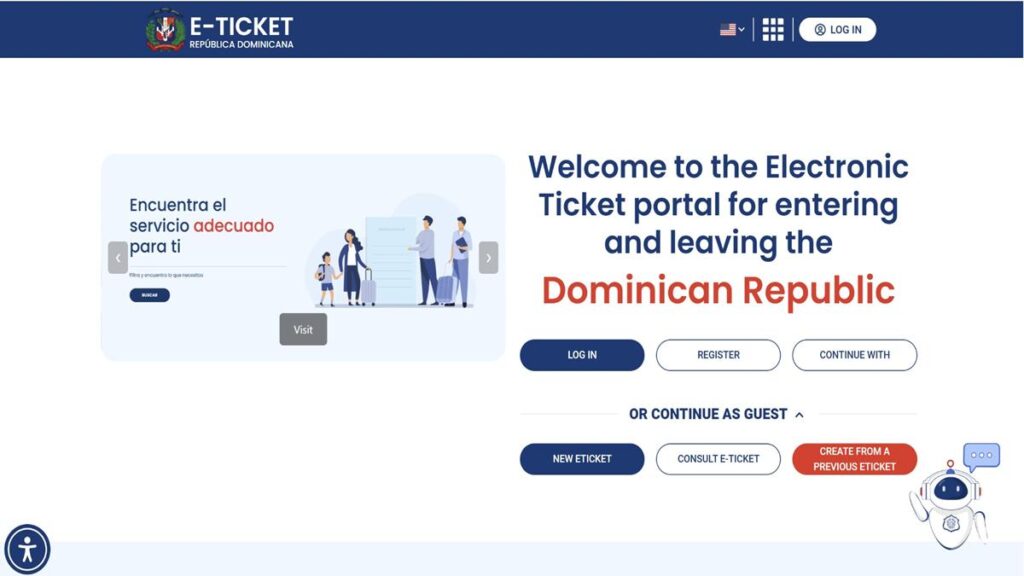
Option A: Continue as Guest
If you don’t want to create an account, scroll down to Or Continue as Guest on the homepage.
Here, you’ll find three options:
- New E-Ticket: Start a new E-Ticket application.
- Consult E-Ticket: Access an existing E-Ticket.
- Create From a Previous E-Ticket: Use information from an earlier application to create a new one.
If you’re filling out the E-Ticket for the first time, click New E-Ticket. On the next screen, complete the security verification and click Create New to start your application. The system will then generate an application number.
Continue with Step 2 below for detailed instructions on how to complete your E-Ticket.
Option B: Register a New Account
If you’re visiting the Dominican Republic regularly, creating an account might be the better option, as you can save your personal information for future trips.
Click Register on the homepage, enter your email address, create a password and complete the security verification. You’ll also need to accept the terms and conditions.
After clicking Sign Up, you’ll receive an email with a verification link. Confirm your email address and log in to your new account.
The portal will ask whether you’ve created an E-Ticket before. If you have, you can try retrieving your previous information using your application code and passport number. Otherwise, simply continue with creating your personal profile.
To complete your personal profile, follow Steps 3 and 4 below. Once you’ve saved your profile, select Create an E-Ticket and return to Step 2 to answer the initial travel questions.
Option C: Log In to Your Existing Account
If you’ve already registered, simply click Log In and enter your email address and password.
You’ll arrive at your account dashboard, where you can select Create New E-Ticket.
Your personal and passport information is already saved in your profile, so you won’t need to enter it again unless something has changed.
Continue with Step 2 below to answer the initial travel questions, then skip to Step 5 – Flight Information, as your personal details are already saved in your account.
2. Answer the initial travel questions
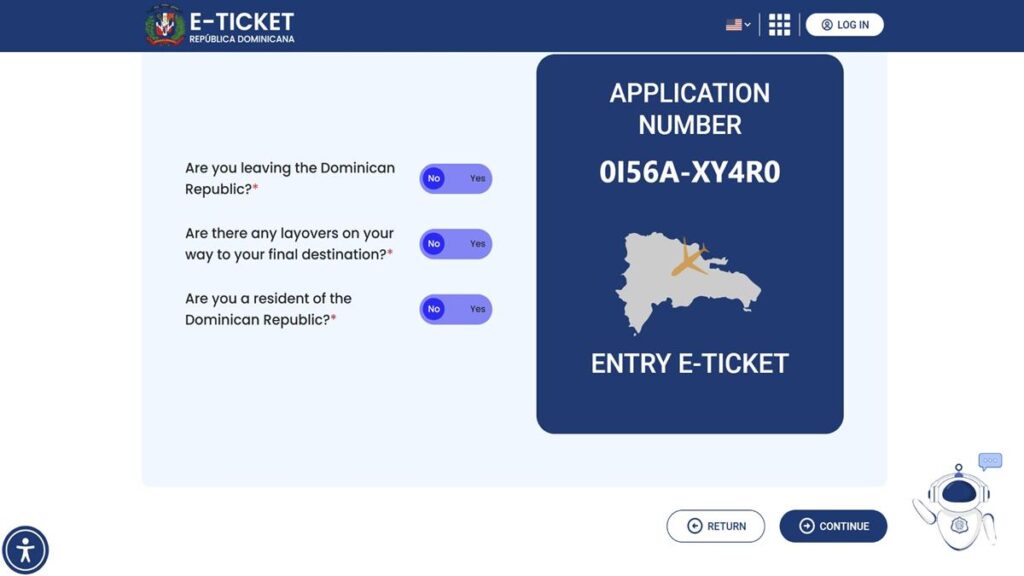
Once you’ve started a new E-Ticket, the website generates your application number and asks you a few questions about your trip.
My personal tip: Save your application number or take a screenshot. This will make it easier to retrieve your application if you need it later.
You’ll now see three initial questions:
Are you leaving the Dominican Republic?
If you’re filling out your arrival E-Ticket for your Punta Cana vacation, select No, because you’re entering the country.
If you’re only completing your departure E-Ticket, select Yes.
Are there any layovers on your way to your final destination?
Select Yes if you have a connecting flight and No if you’re flying directly to your destination.
For example, if you’re flying from Amsterdam via Madrid to Punta Cana, select Yes.
Are you a resident of the Dominican Republic?
If you’re visiting the Dominican Republic on vacation and don’t have Dominican residency, select No.
Even if you’ve visited Punta Cana several times before, this doesn’t automatically make you a resident.
Click Continue to proceed.
What happens next?
- If you’re completing your E-Ticket as a guest: Continue with Steps 3 and 4 to enter your personal and passport information.
- If you’re using a registered account: Your personal information is already saved, so you can continue directly with Step 5 – Flight Information.
3. Enter your personal information
This step is for you if you’re completing the E-Ticket as a guest or setting up your personal profile after registering a new account. If you already have an account with a completed profile, you can skip ahead to Step 5.
You’ll now need to complete the Personal Information section.
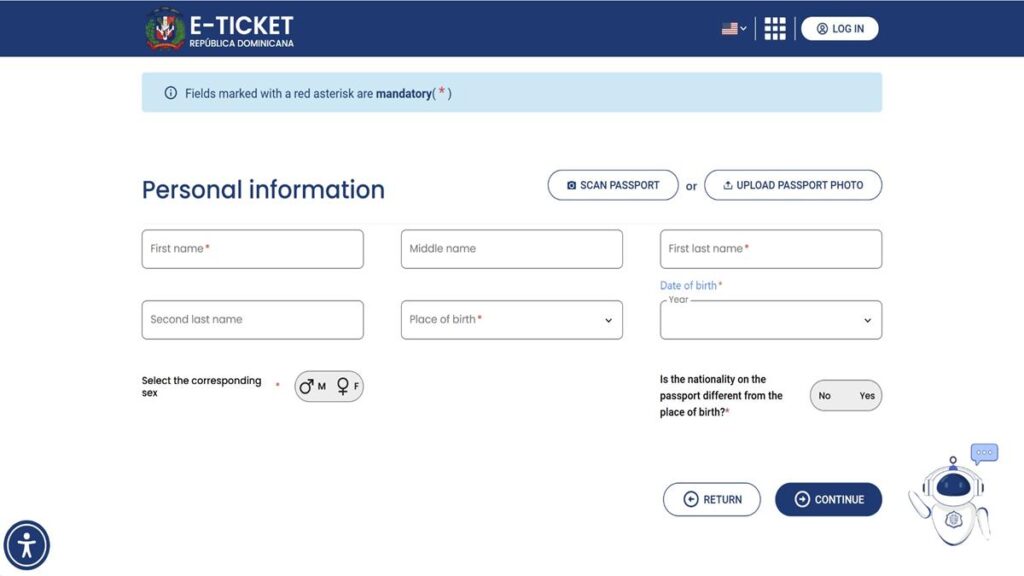
Enter your details exactly as they appear in your passport:
- First Name: Your first given name.
- Middle Name: Your additional given names, if applicable.
- First Last Name: Your surname.
- Second Last Name: Your second surname, if applicable.
- Place of Birth: The country where you were born.
- Date of Birth: Your day, month and year of birth.
- Sex: Select the corresponding option.
- Nationality / Passport Nationality: Select the nationality shown in your passport, wherever requested.
The new E-Ticket portal also offers the option to scan your passport or upload a photo of it, which can save you some time entering your personal information. However, make sure to double-check that all details have been entered correctly.
My personal tip: If you have two given names or two surnames, pay attention to which field you’re using. Your personal details should match your passport.
4. Complete your passport and additional information
The Additional Information section asks for more information about you, including your passport and residential address.
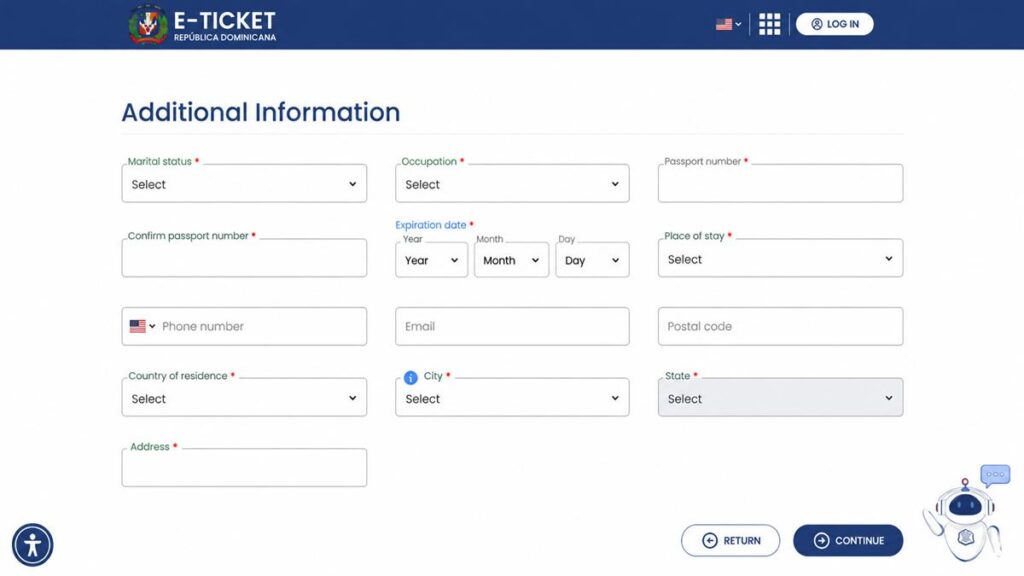
You’ll need to complete the applicable fields:
- Marital Status: Select your marital status, for example Single or Married.
- Occupation: Choose your occupation from the dropdown menu.
- Passport Number: Enter your passport number exactly as shown in your passport.
- Confirm Passport Number: Enter your passport number again to confirm it.
- Expiration Date: Select the expiry date of your passport.
- Place of Stay: Select the type of accommodation you’ll be staying in during your Dominican Republic vacation.
- Phone Number: Enter your phone number, if applicable.
- Email: Enter your email address, if applicable.
- Postal Code: Enter your home postal code, if applicable.
- Country of Residence: Select the country where you currently live.
- City: Select your city of residence.
- State: Select your state or province.
- Address: Enter your home address, not your hotel address in Punta Cana.
Double-check your passport number before continuing. It’s especially easy to confuse the number 0 with the letter O.
If your hometown doesn’t appear in the dropdown menu, try selecting the nearest larger town or municipality.
Place of stay: Select the accommodation type that applies to your trip, for example a hotel or private accommodation. You’ll provide the relevant address details in the accommodation section.
5. Enter your arrival flight information
From here onwards, the instructions are the same whether you’re using an account or completing the E-Ticket as a guest.
The website now asks for your Flight Information Inbound.
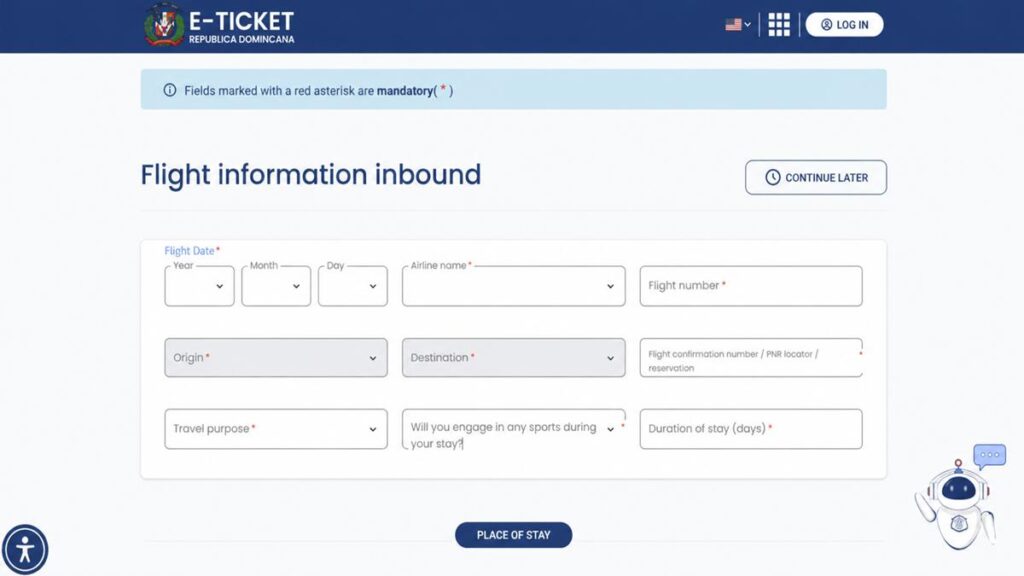
Enter the details of the flight that takes you into the Dominican Republic:
- Flight Date: Select the date your flight arrives in the Dominican Republic.
- Airline Name: Choose the airline operating your flight into the Dominican Republic.
- Flight Number: Enter the flight number shown on your booking confirmation.
- Origin: Select the airport your flight departs from immediately before arriving in the Dominican Republic.
- Destination: Select your arrival airport in the Dominican Republic, for example Punta Cana (PUJ).
- Flight Confirmation Number / PNR: Enter your booking reference.
- Travel Purpose: Select the reason for your visit, for example tourism if you’re coming to Punta Cana on vacation.
- Will you engage in any sports during your stay?: Answer Yes or No according to your plans.
- Duration of Stay (Days): Enter the number of days you plan to spend in the Dominican Republic.
If you’re flying directly from New York to Punta Cana, simply enter the details of that flight.
However, if you’re flying Amsterdam – Madrid – Punta Cana, use the flight number for Madrid – Punta Cana, because that’s the flight that actually enters the Dominican Republic.
My expert tip: Don’t confuse your booking reference with your flight number. The flight number identifies the specific flight, while the booking reference identifies your reservation.
6. Enter your accommodation details
Next, you need to indicate where you’ll stay during your Dominican Republic vacation.
Depending on what kind of accommodation you have chosen in the previous step, you might have to provide further details about the place where you are staying. While the e-ticket system automatically pulls the address of all registered hotels and all-inclusive resorts in Punta Cana or Bayahibe, you have to provide the following information if staying in an Airbnb or an apartment:
- Province: For Punta Cana and Bávaro, this is usually La Altagracia.
- Municipality: Select the municipality where your accommodation is located.
- Sector: Select the corresponding neighborhood or sector.
- Address: Enter the address of your hotel, apartment or villa.
My expert recommendation: in case you’re staying at an Airbnb in Punta Cana or a small hotel which is not in the list, entering the address manual is easy. Enter “La Altagracia” as a “Province”, “Higüey” as the “Municipality” and “Bavaro” or “Punta Cana” as the “Section”. Ask your host for the correct specifications.
7. Complete the customs declaration
The e-ticket form continues with the typical questions of customs. What you are bringing in, what is not allowed, what items you have to declare when entering the Dominican Republic etc.
In case you respond to any question with “Yes”, further boxes are opening up within the Dominican Republic e-ticket portal where you can put in additional information.
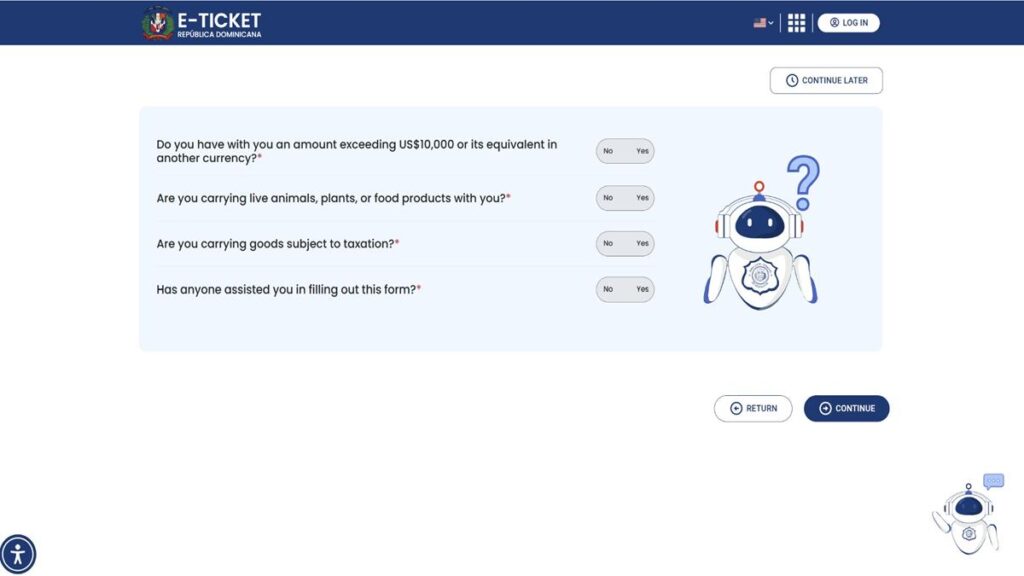
Read each question carefully and answer according to what you’re actually carrying. Don’t just click No for every question without reading it. This is an official customs declaration.
8. Review your application and add family members
The website now displays a General Preview of your E-Ticket application.
Check your personal details, passport number, flight information and accommodation address.
If you notice a mistake, use the available Edit option to correct it.
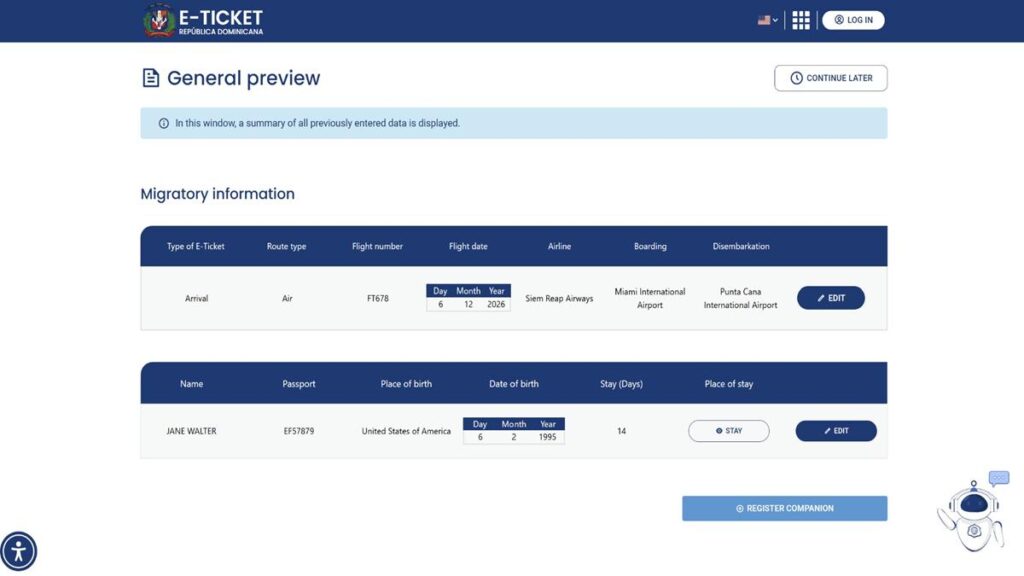
You can also add your family members to the application.
If you’re traveling with your spouse or children, use Register Companion and enter their personal and passport details.
The new portal allows up to seven people in one family application, including you.
If you’ve registered an account and already saved your family members under My Frequent Companions, you can select them instead of entering their information again.
My expert tip: Check that everyone is included in the current E-Ticket. Just because you’ve saved your family members in your account doesn’t mean they’re automatically included in this particular application.
9. Answer the reduced-mobility question
The portal may ask whether anyone included in your application is a person with reduced mobility. Choose the answer that applies to your situation. If you need assistance at the airport, make sure you’ve also arranged this with your airline.
10. Complete your departure E-Ticket
After completing your arrival details, the portal asks whether you want to create your exit E-Ticket.
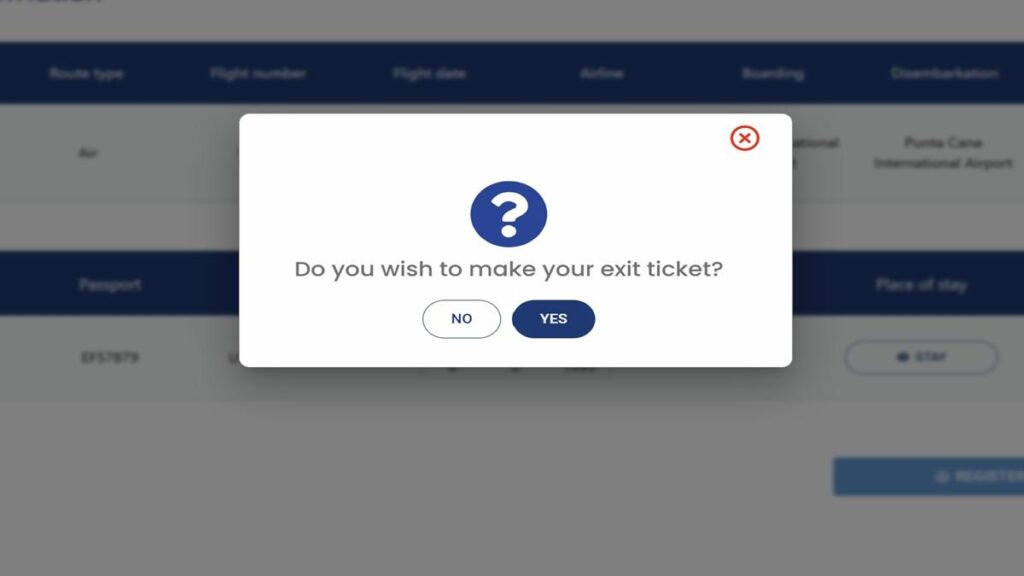
If you’ve already booked your return flight, I recommend doing this now so you have both QR codes ready. If your return flight hasn’t been booked yet, you can select “No” and complete your departure E-Ticket later. Just make sure to do so before your return flight.
Enter the details of your flight leaving the Dominican Republic:
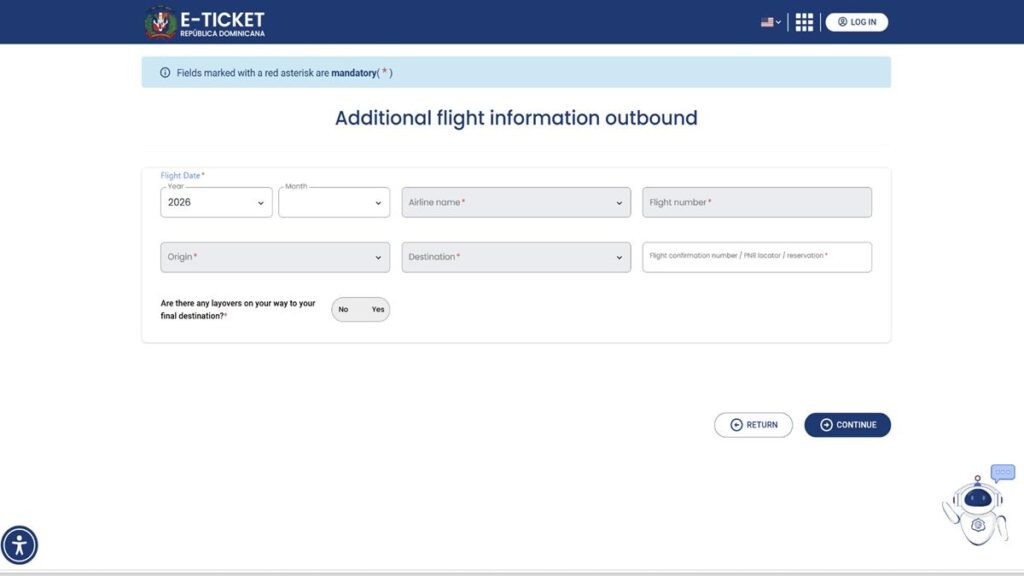
- Departure Date: The date your plane leaves the Dominican Republic.
- Airline: The airline operating your departing flight.
- Flight Number: The flight number leaving the Dominican Republic.
- Origin: Your Dominican departure airport, for example Punta Cana (PUJ).
- Destination: The airport where your flight lands.
- PNR / Booking Reference: Your reservation reference, if requested.
For example, if you’re flying Punta Cana – Miami – New York, use the details of the Punta Cana – Miami flight.
If you’re flying Punta Cana – Madrid – Amsterdam, use the Punta Cana – Madrid flight.
My expert tip: If your flight leaves Punta Cana at night and arrives in Europe the following morning, enter the date you depart from Punta Cana.
11. Review the final details and accept the terms
Before submitting your E-Ticket, review the final information carefully.
Make sure the names, passport details and flight dates are correct.
Read the terms and declarations, tick the appropriate confirmation boxes and submit your application.
12. Download your arrival and departure QR codes
Once your application is complete, you’ll receive your E-Ticket QR code. If you’ve completed both your arrival and departure E-Tickets, you’ll have two separate QR codes:
Entry E-Ticket: For arriving in the Dominican Republic.
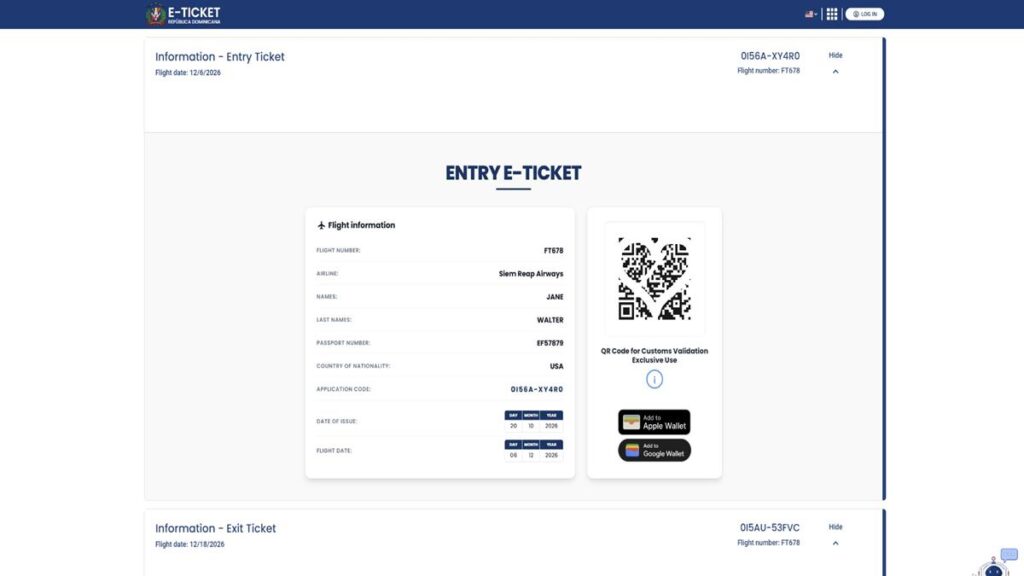
Exit E-Ticket: For leaving the Dominican Republic.
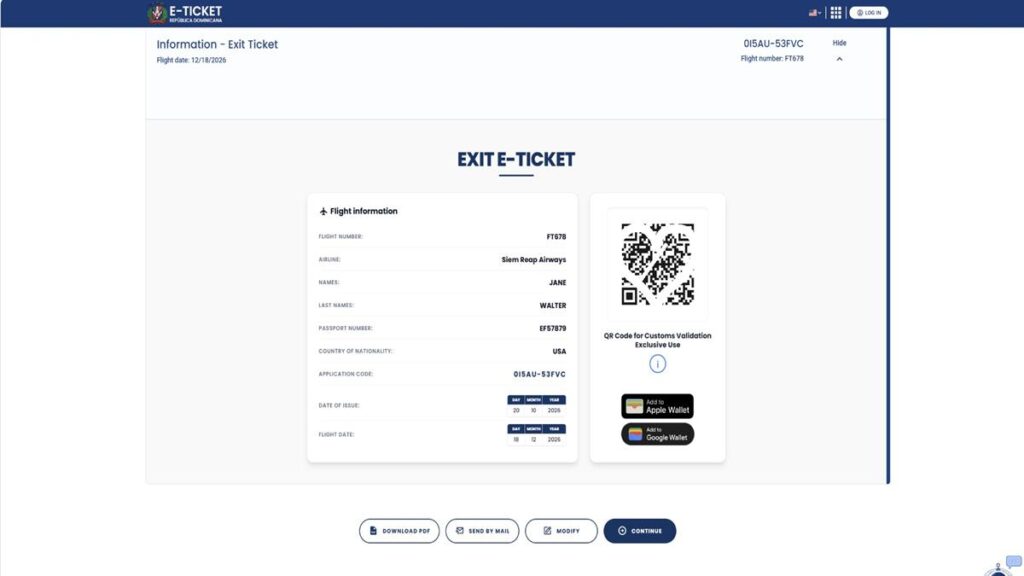
Depending on the options available, you can download the E-Tickets as PDFs, send them to your email address or save them to Apple Wallet or Google Wallet.
My expert tip: I recommend saving your QR codes as screenshots on your phone. This way, you don’t need an internet connection to access them at the airport.
And that’s it! Your Dominican Republic E-Ticket is ready. Save your QR codes, double-check your travel details and enjoy your vacation in Punta Cana!
13. Additional features of your registered E-Ticket account
You can skip this section if you completed your E-Ticket as a guest.
If you’ve created an account, you can use several additional functions for future trips.
Your E-Ticket dashboard
You can access your account dashboard to create another E-Ticket and view available application records.
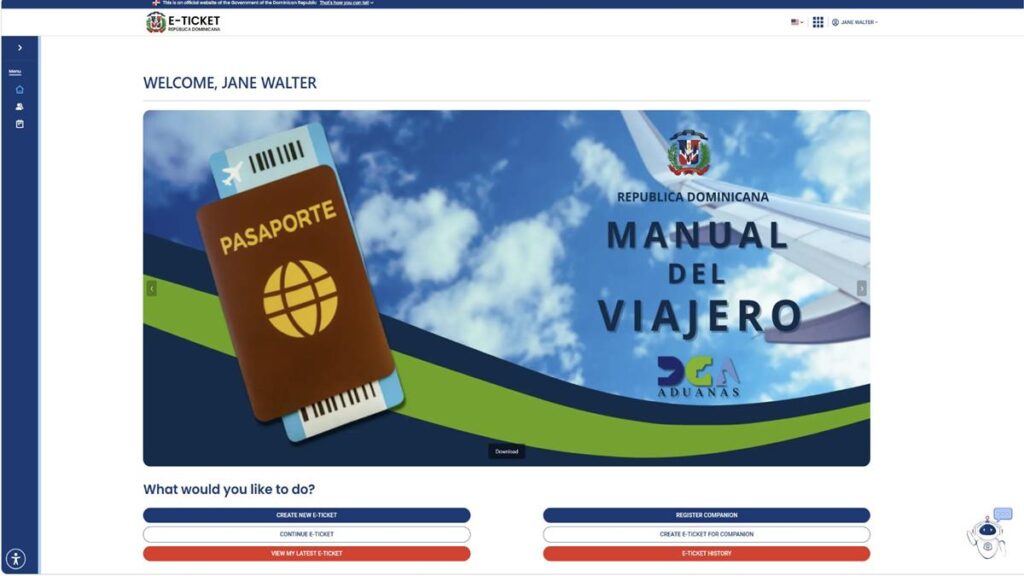
My Frequent Companions
You can save your spouse, children or other eligible companions in your account.
Choose Register Family Members / Companions, enter their personal and passport details and select their relationship to you. Once saved, you’ll find them under My Frequent Companions.
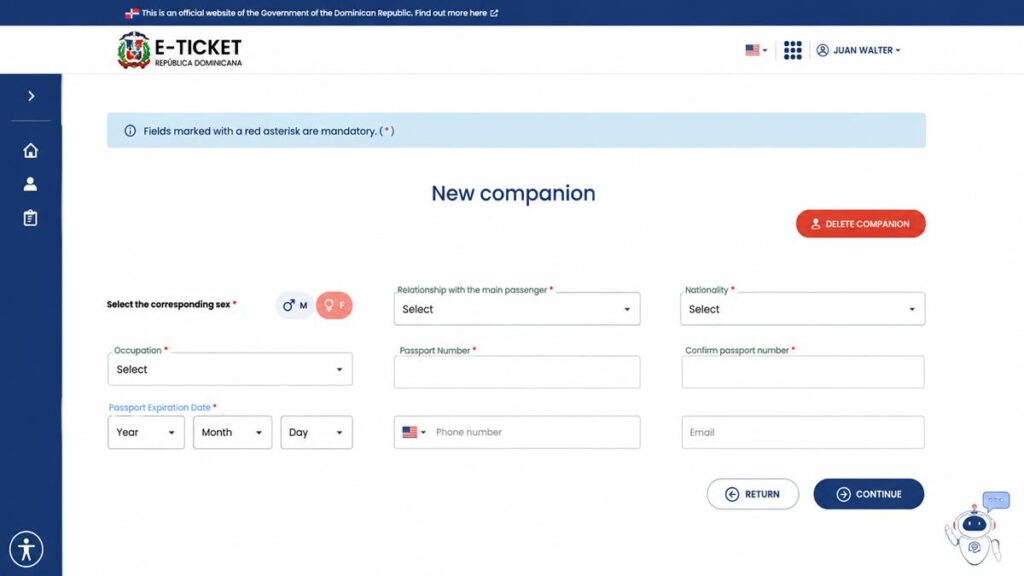
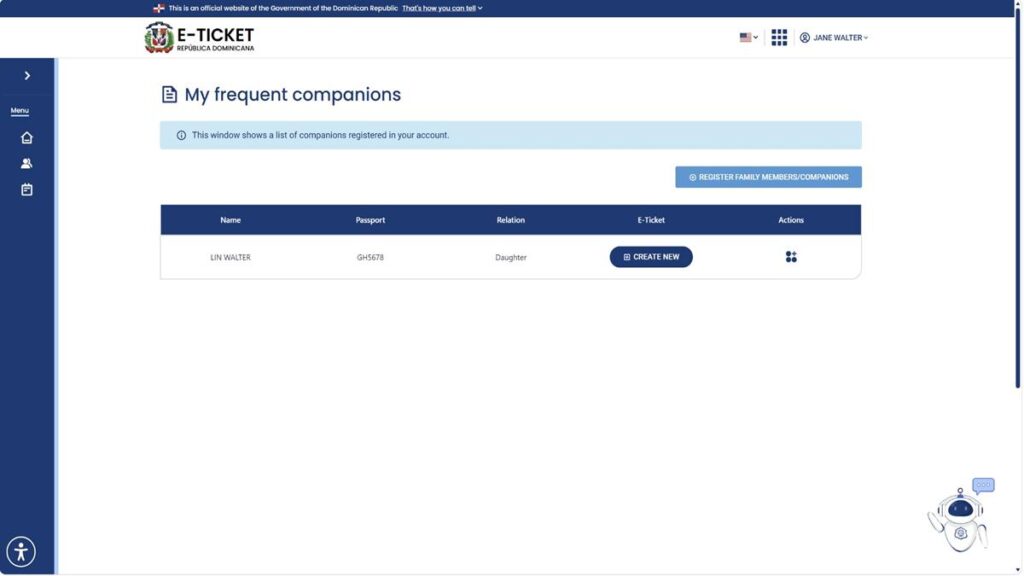
The next time you create an E-Ticket, you can select the saved people traveling with you instead of completing their personal details again.
Edit Profile
If your passport expires or your address changes, you can update the saved details under My Account → Edit Profile.
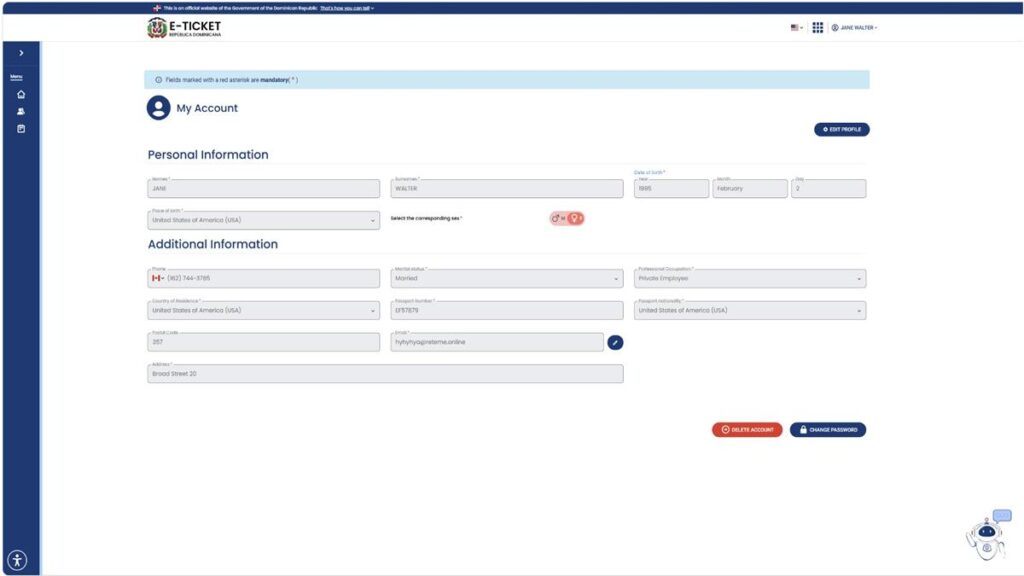
You can also manage your email address and password through your account settings.
My expert tip: Whenever you renew your passport, make sure you update the saved passport details before creating your next E-Ticket.
How to fill out the old e-ticket form for Punta Cana and the Dominican Republic?
Filling out the Dominican Republic travel authorization form for immigration is easy, just follow the steps below. This step-by-step guide shows you everything you have to take care of.
The e-ticket immigration form is best used with a desktop computer or notebook and a common browser such as Chrome or Firefox.
1. Access the e-ticket website in English
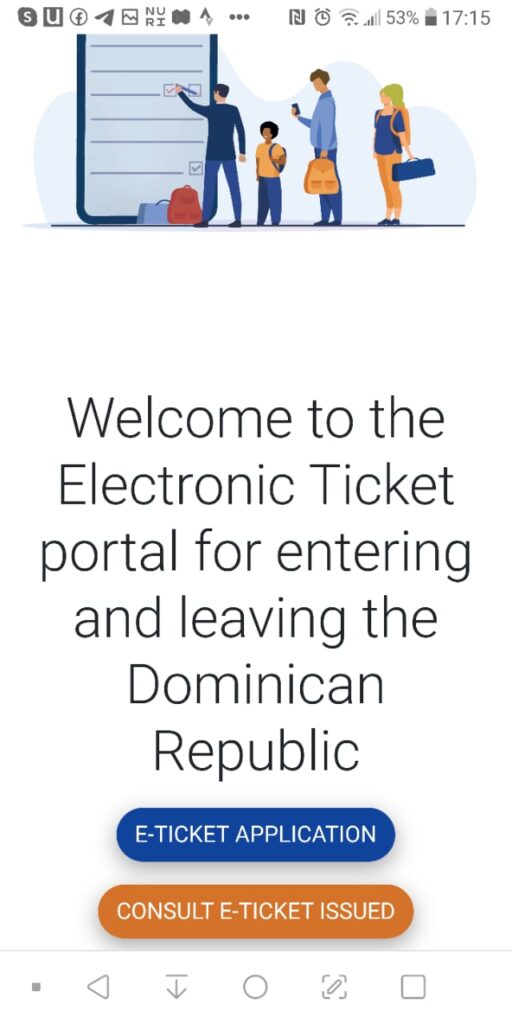
To start with the process, access the official website of the Dominican Republic Ministry of Immigration* and click on “E-Ticket Application” (the blue button). Make sure it is the official site from the Dominican government which ends with “.gob.do”, the top-level domain for official government-supported internet services in the Dominican Republic.
Some visa service agencies offer help filling out the form or pretending to be the official immigration website of the Dominican Republic. Avoid these pages as the e-ticket is free and super easy. Most of these paid services are not really scam as you still will get your e-ticket, but they are absolutely not needed.
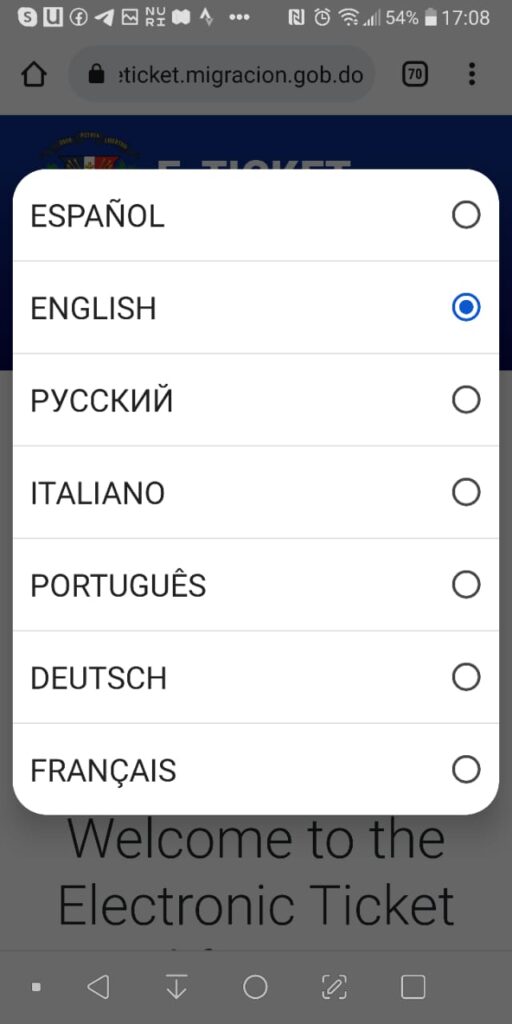
In case the electronic ticket portal opens up in Spanish, you can switch the language in the upper right corner. The Dominican Republic e-ticket in English is available and accessible through this button in the corner.

If you have already created an e-ticket for a previous vacation in Punta Cana, you can simply take over these personal details by clicking on “E-ticket Application” and “Create from a previous eTicket”. Please note that this option only works if your previous e-ticket was created for travels after the 16th of December 2022.

2. Getting started
If you don’t want to (or can’t) use previous e-ticket information, you can start the immigration form process for your Punta Cana holiday by clicking on “e-ticket application” and in the following pop-up on “new eTicket”.

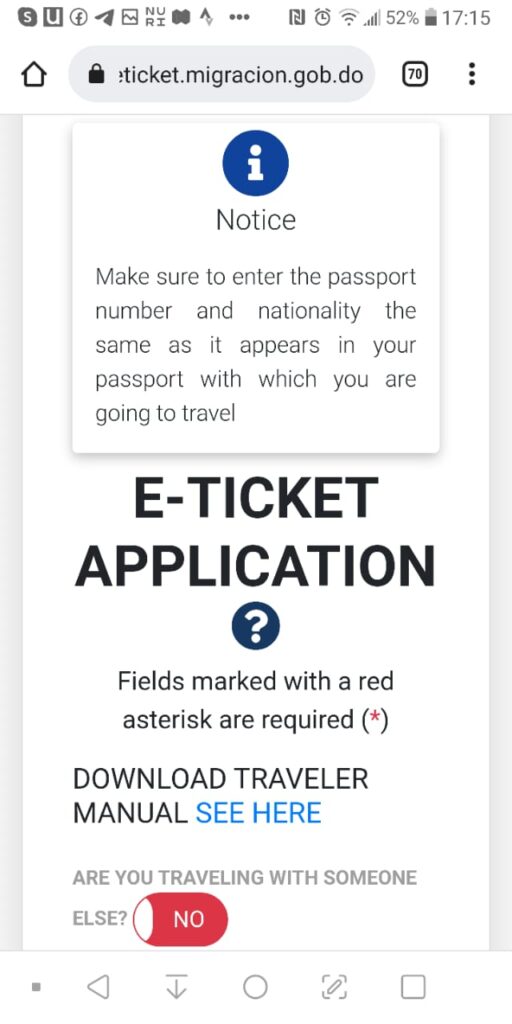
The first question in the Dominican Republic e-ticket form is how many other people you are traveling with. Make sure to choose the right number of travelers. The question is “How many people are traveling WITH you?”. So if you are a party of 4, you have to enter “3”, as 3 other people are traveling with you. If you pick the wrong number and realize this during the e-ticket process, you have to start all over again.
You can also click “No” and fill out one e-ticket per person, which has the big advantage that you get one QR code per person (easier to verify) and can’t get confused by the number of persons.
My personal tip: once you start your e-ticket for Punta Cana, definitely write down your application number as you might need it later if you want to submit some changes.
Once you click on submit, you’ll get directed to the next screen, where you also see your application number, which you should write down. This application number is important as it is the only way of later being able to log in to your e-ticket form. If you can’t find your application code later and would like to make some changes, you can’t log in to your e-ticket and have to start over again.

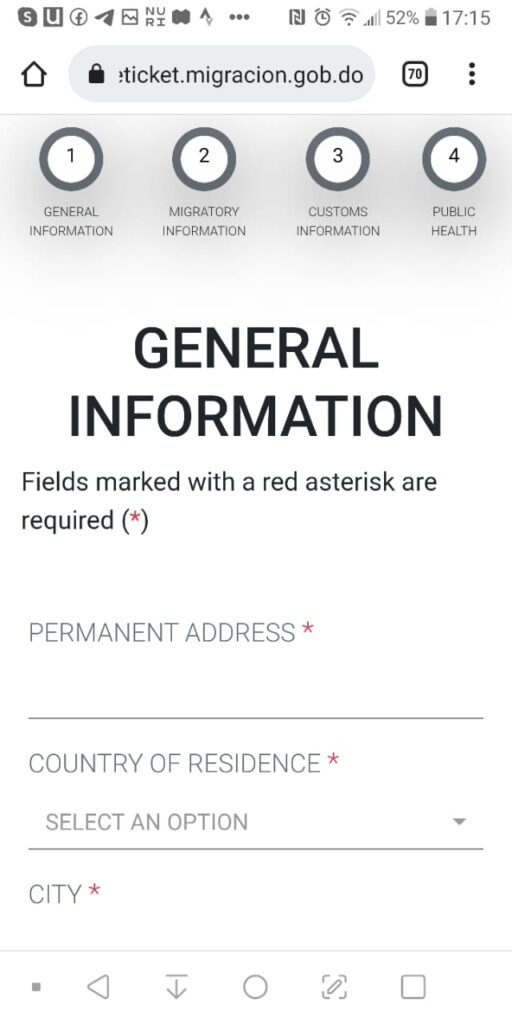
3. Enter your personal information (“General Information”)
Now you can start by entering your personal information to get the immigration e-ticket and QR-Code for your Punta Cana vacation.
In this step, you need to add the following information:
- your permanent address
- your country of residence
- the city where you live (hint: if your town is not on the list, pick the closest one next to you)
- if you are arriving or leaving the Dominican Republic (note that you have to fill out one form for the arrival and one for the departure)
- the state where you are from (might be pre-selected depending on the city you choose)
- the zip code of your permanent address
- if you have layovers or flight changes in any other country before traveling to Punta Cana
Once you have completed all the boxes successfully, you can click on “Next” to proceed to the next screen.

4. Enter your trip details (“Migratory Information”)
When it comes to the migratory information, you are getting asked for all the details you are used to from ordinary immigration forms you usually fill out on the plane.
Here for the e-ticket, you have to fill out the following:
- your first and last name
- your date and place of birth (hint: if there is a bug with the dropdown boxes, try a different device or browser)
- your gender
- your place of birth
- your passport (twice, to avoid typos)
- your civil status
- your occupation (if you don’t find the right one, just pick “Other”)
- e-mail (optional)
- phone number (optional)
You are also getting asked if you are a legal resident in the Dominican Republic (“Are you a foreigner resident in the Dominican Republic”). Usually, as long as you don’t have a Dominican residency, you can answer this question with “No”. (I know, yes you’re a foreigner but no, you’re not a resident, so the answer is “no”.)
Now, you have to pick if you are staying in a hotel / all-inclusive resort, if you have booked an Airbnb or if you are staying elsewhere. Whatever you have booked for your Punta Cana vacation, pick the right choice for your e-ticket form here.
Expert tip: If you can’t find your hotel/resort in the drop down list (this happens sometimes for new resorts or if the name of hotels has changed recently), you always can choose “Airbnb” or “own house” and enter the address manually. To find the address of your hotel, simply head to Google Maps and search for the name of your hotel.
Depending on what you choose here, you either have to provide the full address of your Punta Cana Airbnb respectively any other guesthouse or apartment or you have to pick your hotel or all-inclusive resort in the Dominican Republic from a list.
If you haven’t booked any accommodation yet it is recommended to enter the hotel you are most likely staying at for your first night in the Dominican Republic.

After choosing the right accommodation for the Dominican Republic entry form, you have to provide further travel details such as:
- embarkation port (meaning: the airport where you are coming from (your last flight towards the Dominican Republic), for example Miami)
- flight number
- flight date
- disembarkation port (meaning: the airport in the Dominican Republic where you are going to, for example Punta Cana)
- name of the airline you are flying with (or ferry or cruise ship in case you are arriving in the Dominican Republic by sea) you are traveling with)
- your flight confirmation number (this is optional)
- the reason why you are traveling (“travel purpose”, usually this is leisure or business)
- the length of stay (in days) (this is optional)
- if you plan to do any sports during your vacation in Punta Cana (a bit of a weird question, but you can simply enter “none”)
The Punta Cana immigration form also asks for your e-mail address. While you are free to put it in, you won’t receive the application code or any kind of confirmation automatically via email. It is optional information; you can also proceed with the e-ticket without providing your email address. However, in case you have entered your e-mail, you have the chance at the end of the e-ticket form (once you see the Dominican Republic QR code) to send the e-ticket via e-mail, which is particularly helpful if you don’t have a comfortable way to save or view PDFs.
Furthermore, depending on what kind of accommodation you have chosen in the previous step, you might have to provide further details about the place where you are staying. While the e-ticket system automatically pulls the address of all registered hotels and all-inclusive resorts in Punta Cana or Bayahibe, you have to provide the following information if staying in an Airbnb or an apartment:
- province of your private accommodation
- municipality of your private accommodation
- sector of your private accommodation
- address of your private accommodation
My expert recommendation: in case you’re staying at an Airbnb in Punta Cana or a small hotel which is not in the list, entering the address manual is easy. Enter “La Altagracia” as a “Province”, “Higüey” as the “Municipality” and “Bavaro” or “Punta Cana” as the “Section”. Ask your host for the correct specifications.
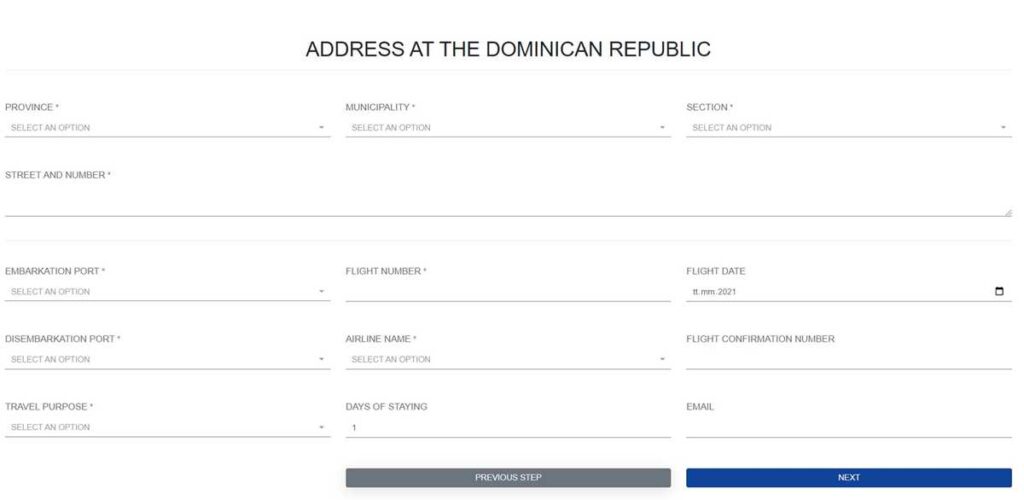
In case you decided to fill out the Dominican Republic e-ticket form for various passengers in one application, you will have to enter the same migratory details and address information for every passenger in this step.
5. Customs information
The e-ticket form continues with the typical questions of customs. What you are bringing in, what is not allowed, what items you have to declare when entering the Dominican Republic etc.
The following customs information are requested:
- 1) if you are bringing in cash with the worth of 10.000 USD or more
- 2) if you are bringing in plants, animal or food products
- 3) if you are bringing in any taxable items
In case you respond to any question with “Yes”, further boxes are opening up within the Dominican Republic e-ticket portal where you can put in additional information.

This step also has to be completed for each passenger registered in the application process.
6. Accept conditions and send
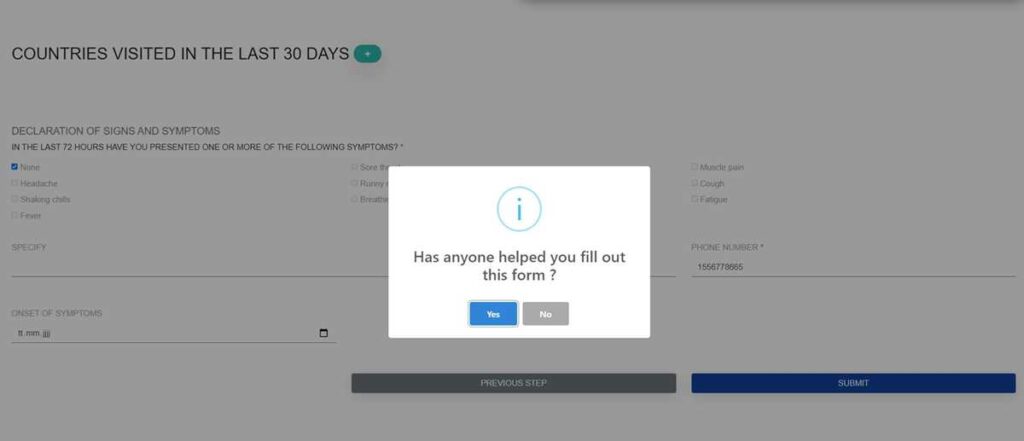
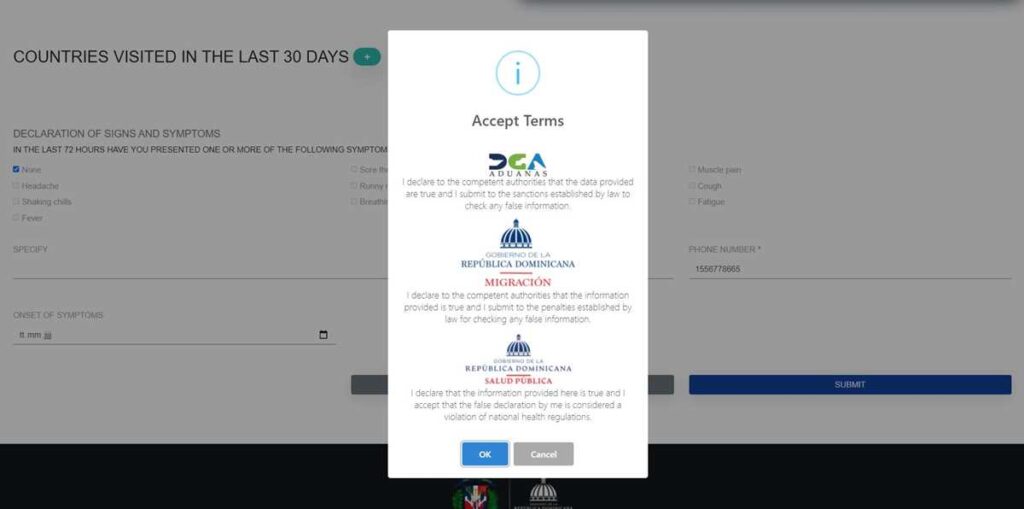
Now you are already 95% done with requesting your e-ticket. You now see two screens where you are asked if you used anyone’s help filling out the form and if you accept the terms and conditions.
7. Fill out the exit e-ticket right away
Since 2023, it is possible to fill out the departure form (exit e-ticket) right away in one single step and within the same process.
Once you have finished step No. 6 described above, you’re getting asked in a pop-up if you “would like to complete your exit ticket”. Click yes if you want to do so – which I would recommend as it is the easiest and quickest way.
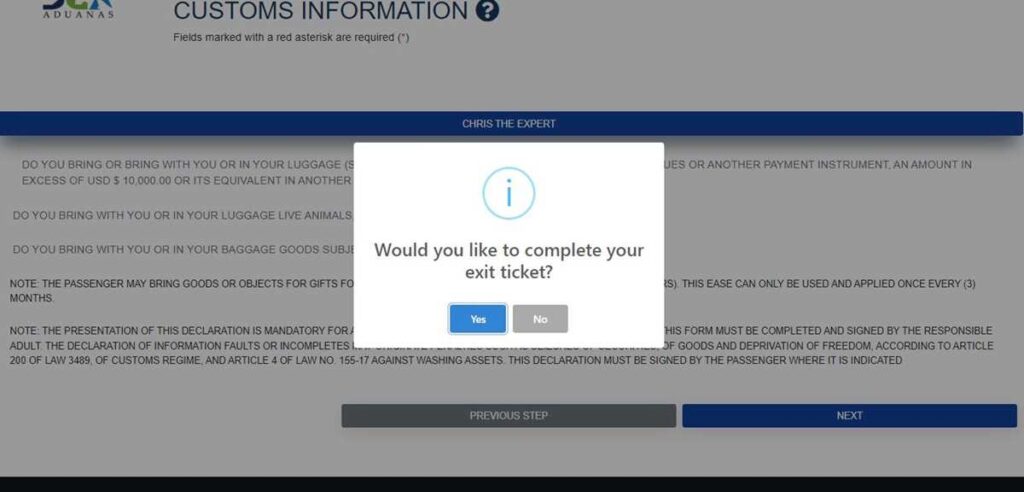
If so, you just have to fill out the following details in the following pop-up:
- embarkation port (meaning: in this case, it is the airport you’re flying from when returning from the Dominican Republic, for example Punta Cana)
- disembarkation port (meaning: for the Dominican Republic exit form, this is your (final) destination where you’re flying to, for example Miami)
- your flight number for the return flight
- your flight date (when leaving the Dominican Republic)
- airline name
- your flight confirmation number (this is optional)
Once you’re done, click on “next” to receive your Dominican Republic QR-Code for entry AND exit (two different codes).

8. Get a QR-Code (or codes) and save/download
Congratulations, you are done!
If everything worked out well and you haven’t had any problems with the e-ticket, you have completed the e-ticket RD portal for traveling to the Dominican Republic successfully. You should see the QR-Code (two QR codes in case you did the arrival AND departure e-ticket) now which eases up the immigration process when arriving in Punta Cana 2023 or any other airport of the country.
Most important thing to book before your trip – what most people forget: health insurance for the Dominican Republic – get prices here*
(gets you covered in case of illness, accidents or necessary medical treatments)
However, please note that this is not the confirmation you are allowed to enter the Dominican Republic. In the end, it is the immigration officer who decides and checks all the details once you arrive.
Once you see the QR code, I highly recommend clicking the “generate PDF” button and saving it on your local computer. From here, you could either save it on your mobile phone or print it out, so that you have the QR code handy to show when boarding the plane and/or arriving in the Dominican Republic. You can also send it via e-mail if you have entered an email address at step 4 of the form.

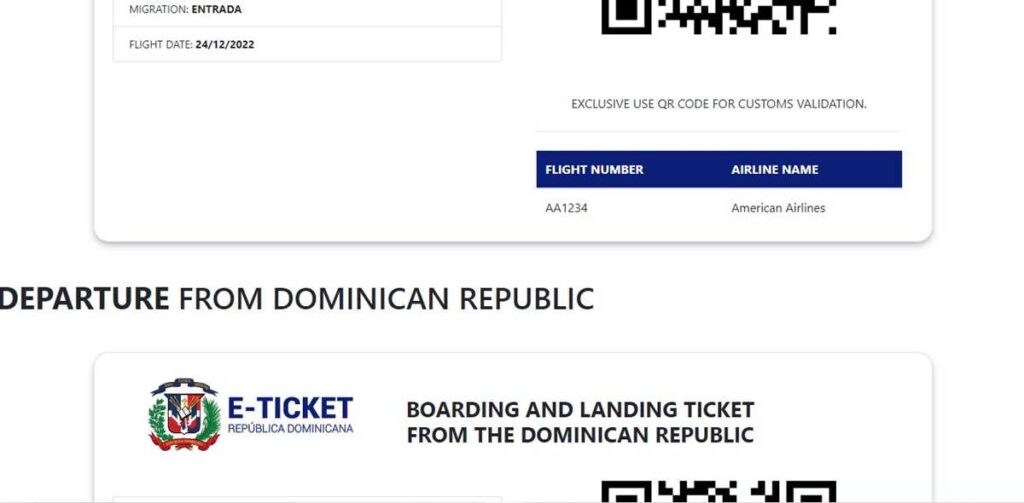
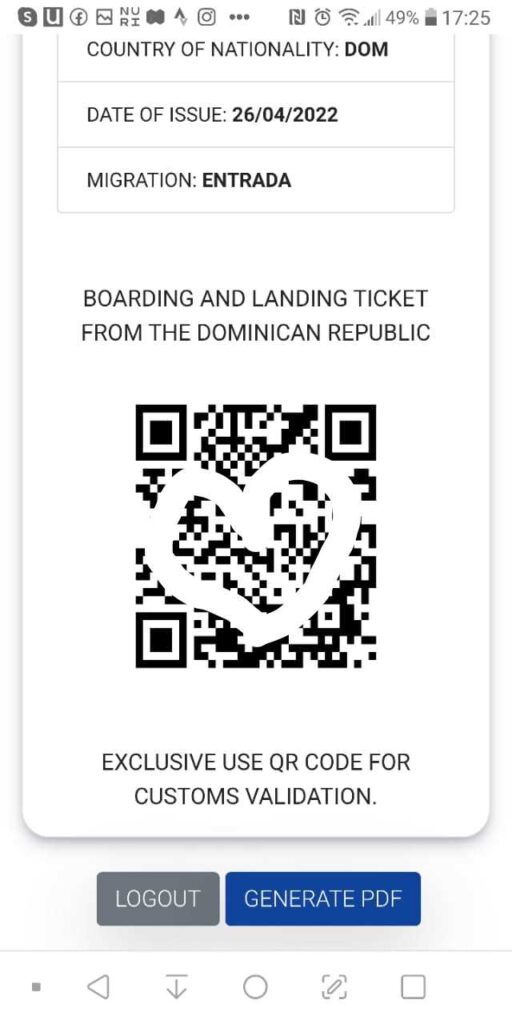
In case you opted for the additional step and filled out the arrival and departure e-ticket, you will see 2 different QR codes with 2 different application codes. You can save both of them in one PDF. One is mentioning that it is for “entrada”, which means that it is for your arrival in Punta Cana, the other Dominican Republic QR code mentioning “salida” is for your departure from the country. You should also see your respective flight numbers below the codes.
Filling out the e-ticket on a mobile phone
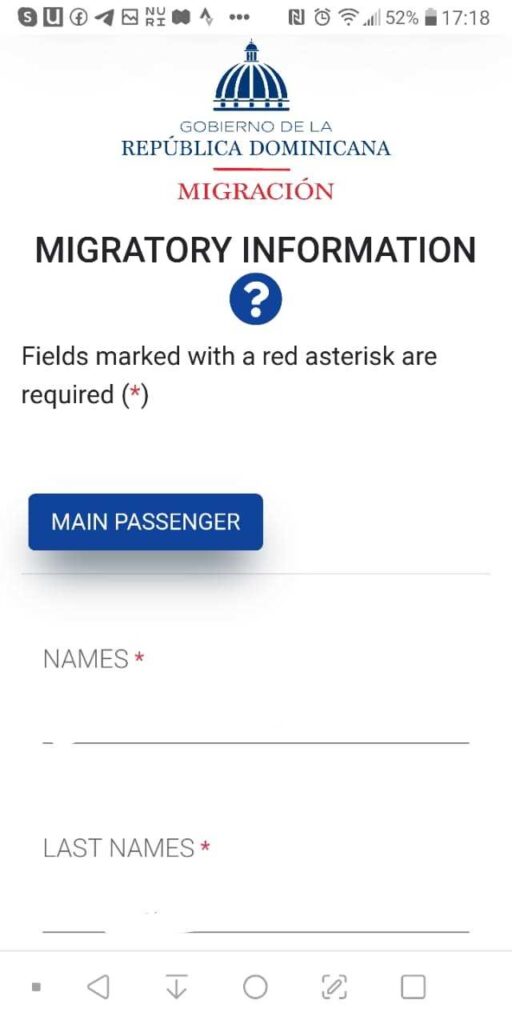
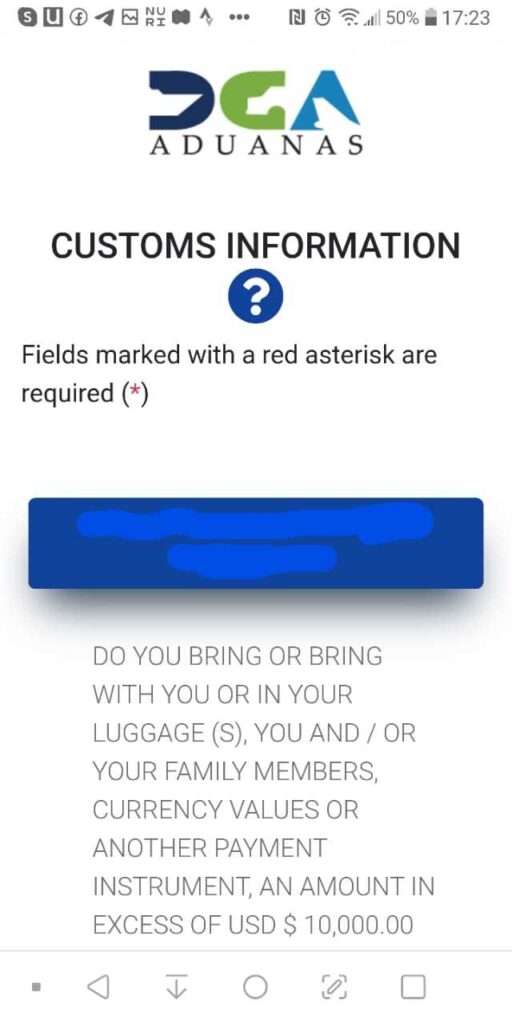
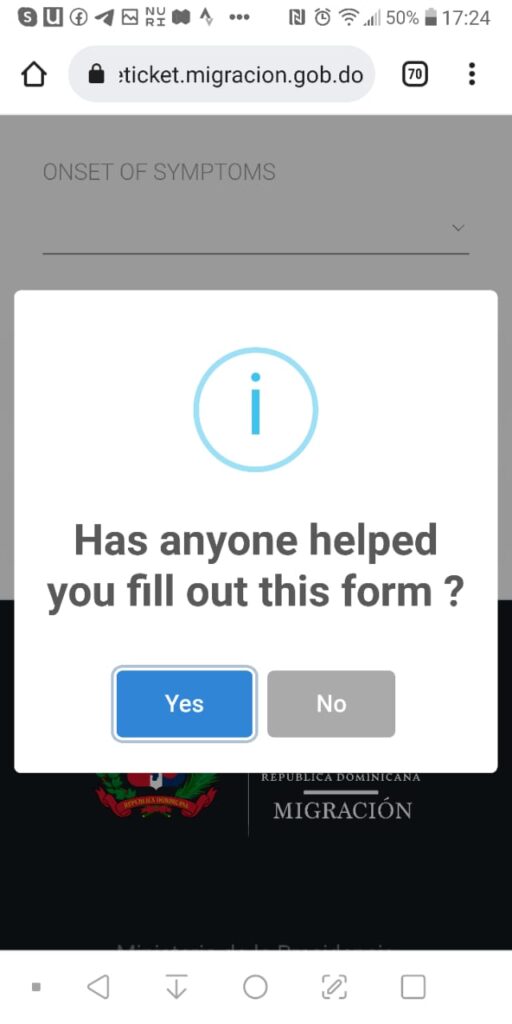
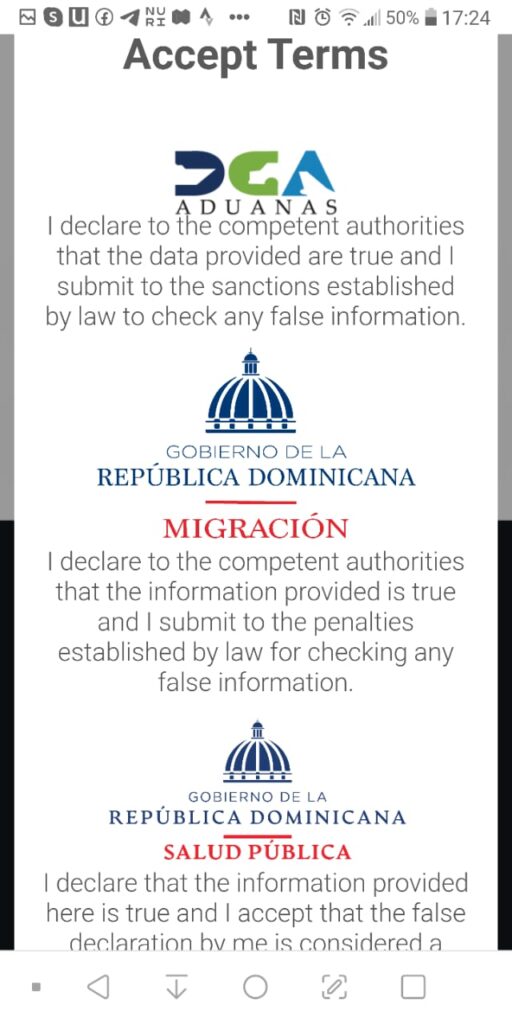
As mentioned above, an e-ticket app does not exist, but you can definitely fill out the immigration form on your mobile phone as well. Remember that you need one e-ticket to enter Punta Cana and one e-ticket to leave Punta Cana.

The steps to fill out the e-ticket on your mobile phone are similar to the instructions shown in the step-by-step guide above. To give you some better insights, here are some screenshots I made when I filled out the e-ticket for one of our trips.
Key Takeaways: what is the e-ticket and who needs it?
To sum it up, here are the most important things to remember about the Dominican Republic e-ticket:
- The e-ticket for the Dominican Republic is completely free. No payment or visa agency is needed.
- You can fill out your e-ticket as soon as your flight and accommodation details are confirmed, even several months before your trip.
- You need two e-tickets: one for entering the Dominican Republic and another one for leaving the country.
- You can complete your arrival and departure e-tickets during the same application process, so there is no need to start everything from scratch for your return flight.
- Once you have successfully completed the process, you will receive your QR codes. Save them on your phone, download them as PDFs or print them out.
- The e-ticket replaces the traditional paper immigration and customs forms for air travel.
- The e-ticket is mandatory for travelers arriving in or departing from the Dominican Republic by air. Make sure to complete it before your trip, as airlines may request your QR code during check-in or boarding.
Common problems, bugs & errors
When shall I fill out the e-ticket?
You can fill out the e-ticket at any point before your trip, but usually the departure dates are only available 2-3 months before. This being said, I would recommend doing your e-ticket for your Punta Cana vacation approximately 1 month before your trip.
I have connecting flights. What’s the embarkation port and what flight number shall I add?
If you have connecting flights or a layover on your way to the Dominican Republic, it’s always the last flight (the one that is entering the Dominican Republic) that is important for the entry e-ticket and the first flight (the one leaving the Dominican Republic) for the exit e-ticket. As an example, if you fly New York – Miami – Punta Cana, Miami is your embarkation airport and the flight number from Miami to Punta Cana is the one you have to enter in the e-ticket.
Is one e-ticket per family enough?
Yes, you can include family members in the same application, including children, subject to the number of travelers supported by the portal.
In the new E-Ticket portal, you can add up to seven travelers in one application. If you’ve registered an account, you can also save family members under My Frequent Companions, which makes future applications easier.
I am traveling with friends from a different household. Can we be on the same e-ticket?
Officially, you shall only put family members or people from the same household on the same e-ticket. However, I have heard from other travelers that it is usually ok to be on the same e-ticket as long as you’re on the same flight. Personally, to be on the safe side, I would always create a separate e-ticket for each family.
The exit e-ticket shows the wrong departure date.
When you do the entry and exit e-ticket together, the departure date sometimes gets transmitted incorrectly, hence an incorrect PDF is generated. That’s a common problem with the e-ticket. I would suggest two things:
- Go back to modify your e-ticket and have a look to see if the departure date is entered correctly. If so, take a screenshot and you’re good to go, as just the PDF is wrong, but the date in the immigration system is correct.
- If you want to be on the super safe side, simply create a new e-ticket only for the exit part of your trip.
Names are cut off or wrong when generating the QR code.
This is a typical bug when using
- multiple persons on one e-ticket
- adding middle names to your e-ticket
If you see a QR code with incorrect names, I suggest the same as before: go back and check if the name was entered correctly (and take a screenshot) or create a new e-ticket for just 1 person for entry OR exit only to avoid the bug.
When doing online check-in with the airline, it says “visa required”.
I have heard about this problem multiple times, but you don’t have to worry. If you’re traveling with a North American, South American or European passport (except for Venezuela, Haiti, Cuba, Belarus and Kosovo), you don’t need a visa to enter the Dominican Republic. The error comes up because the e-ticket is an immigration requirement for the airline, which is why some check-in systems recognize this as a “visa required” demand. The only thing required here is a duly filled-out e-ticket.
The Drop-down “day” field is stuck or non‑selectable when entering the day of birth.
This is a common e-ticket bug. If you encounter this problem, your only solution is to try another browser, another device or clear the cache/cookies. If all those do not help, you can just start over with a new e-ticket.
My departure date is not available in the drop-down menu.
If your departure date is not available, you might be too early. The departure dates get released periodically. For example, as of now (mid-July), all departure dates until the end of September are available; hence, if you travel in the last quarter of the year, you still have to wait with your e-ticket.
“An error has occurred … please fill out all required fields,” despite all data being entered.
I have not experienced this error with my e-ticket, but have heard from others. If you see this message, you most likely have skipped one of the mandatory fields. I’d suggest checking closely if you haven’t missed anything. If the error persists, you can try it with a new e-ticket to see if it’s just a bug.
My hometown/city is not listed – what shall I do?
If your hometown is not listed, you can pick any city that is next to or close to your hometown.

Other frequently asked questions (FAQ)
SHARING IS CARING! IF YOU ENJOYED THIS ARTICLE, PLEASE SHARE WITH YOUR FRIENDS – I WOULD APPRECIATE IT A LOT.

Ewa
Travel Blogger & Punta Cana Expert
Hey, I am Ewa. Originally from Poland, I lived in the Netherlands for 15 years before deciding to start a new chapter of my life in Punta Cana, Dominican Republic.
Now I explore Punta Cana and the Dominican Republic full-time with my family, sharing honest resort reviews, excursion recommendations, travel tips, and local insights. Having visited numerous resorts and attractions across the region, I focus on providing practical, first-hand information travelers can actually use. Living here allows me to experience destinations from a local perspective and provide information that goes far beyond what you can find in a typical brochure.
My goal is simple: to help you plan an unforgettable Punta Cana vacation with trustworthy, up-to-date, and experience-based advice.
Do you need more information? Read more at my About Me Page or Contact Me here.


